Make accountant collaborationmore efficient
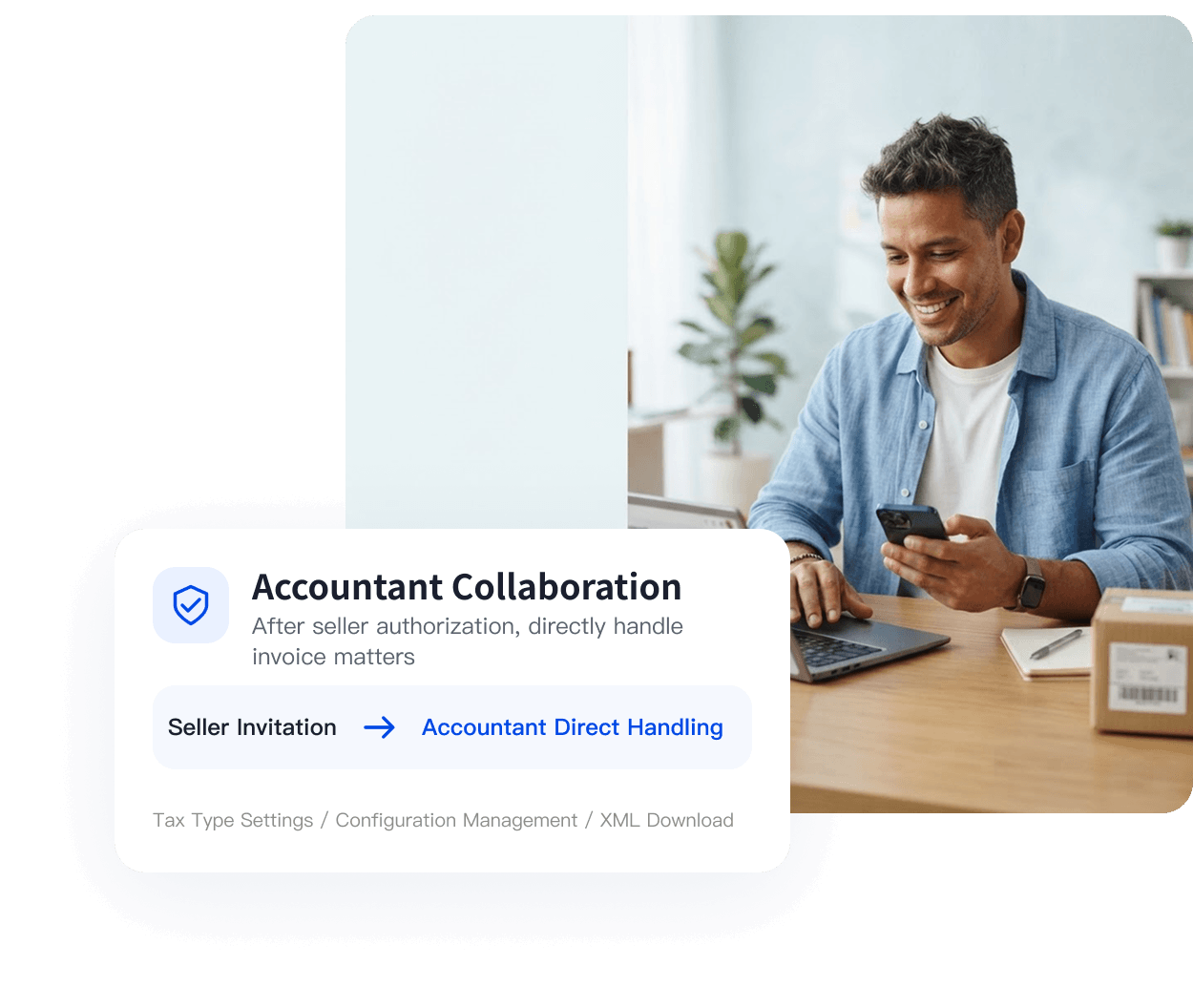
Sellers invite and authorize accountants to handle invoicing and tax reporting directly, reducing back and forth communication and keeping invoice data moving smoothly.
Where does the invoicing to tax reporting process get stuck?
Repeated file transfers, repeated confirmations, and unclear permissions add delays to collaboration.

Invoice XML files are sent back and forth
Each month, sellers export invoice XML files manually and send them to accountants by email or chat. Many files and versions make omissions and mistakes more likely.

Tax regime changes require repeated confirmation
When tax regime information changes, the seller prepares and sends it, then waits for the accountant to review and confirm. This back and forth slows invoicing.

Accountant permissions are unclear
Sharing the main account grants overly broad access and complicates data security; without access, the seller must handle every invoice task.

Tax documents are hard to organize consistently
Invoice data is scattered between the seller and accountant. Separate organization and checks interrupt the workflow and can create inconsistent data.
One authorization channel connects sellers and accountants
UpSeller provides a separate collaboration channel for sellers and accountants. Sellers invite an accountant and assign permissions in UpSeller. After registering in the independent accountant system, the accountant can set invoicing tax regimes, edit invoice settings, and download monthly invoice XML files directly, without repeated exports and transfers by the seller.
- 1Seller invites accountant
 2Assign feature permissions
- 3Accountant registers or signs in to CPA
- 4Accept binding
- 5Handle invoice tasks directly
 Settings → Permission Settings → Accountant Settings
Seller entry
Invite accountants, assign permissions, and manage bindings in UpSeller.

- cpa.upseller.com
Accountant system entry
Accountants create a CPA account and sign in to handle sellers’ invoice tasks directly.
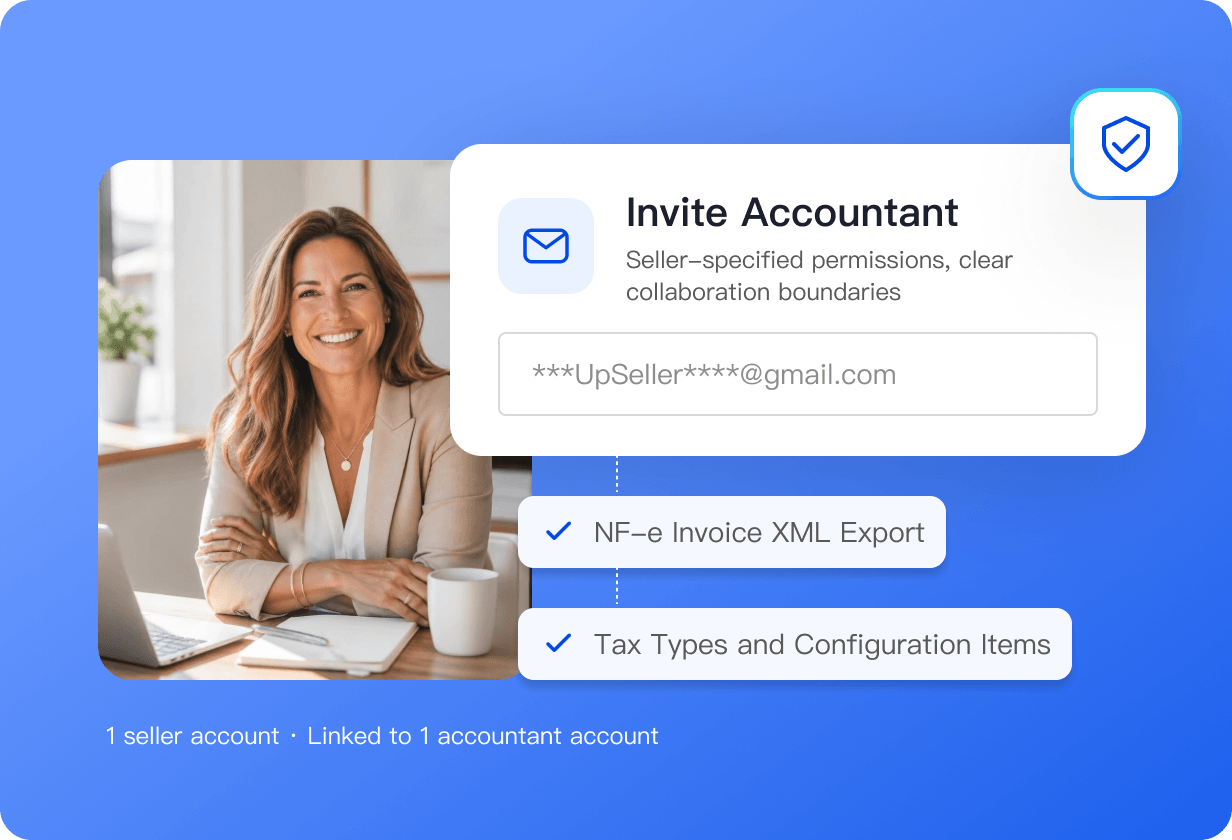
Invite an accountant and set clear, controlled permissions
In UpSeller, go to “Settings → Permission Settings → Accountant Settings,” enter the accountant’s email, assign feature permissions, and send the invitation. The link is valid for 24 hours and can be resent if it expires.
 Invite an accountant: enter an email to send an invitation link valid for 24 hours
- Set feature permissions: NF-e export for the past 3, 6, or 12 months, tax regime management, and settings, or grant all at once
- One to one binding: one seller account can be linked to only one accountant account
The invitation link is valid for 24 hours and can be resent after it expires.
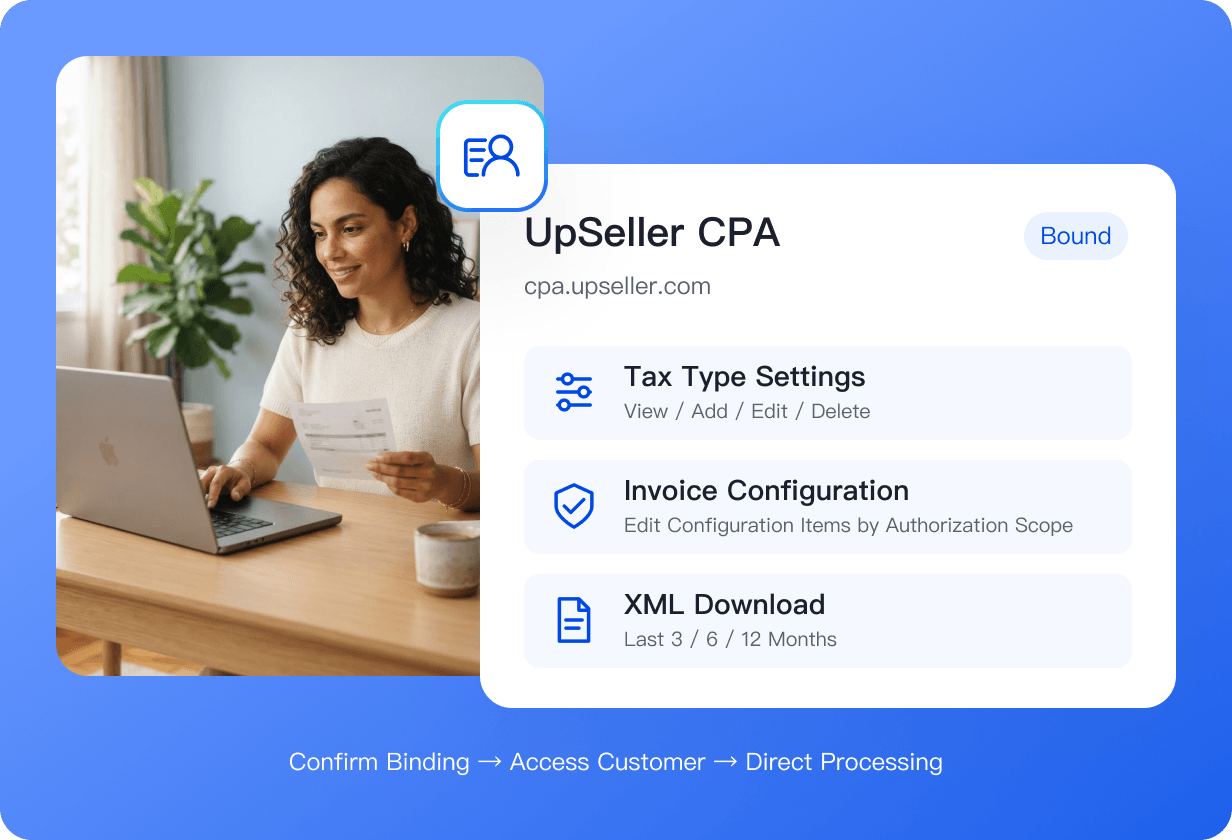
Accountants manage invoice tasks directly in a separate system
After registering an UpSeller CPA account, the accountant accepts the email invitation and can set a seller’s tax regimes, edit settings, and download invoice XML files in their own system.
- Register independently: sign up at cpa.upseller.com and select Brazil as the operating region
- Bind by email: click “Confirm Binding” in the invitation email to complete authorization
- Access clients: open the client list after binding and handle invoice tasks
- Tax regimes and settings: view, add, edit, or delete tax regimes, and edit settings directly
- Invoice download: directly download invoice XML files from the past 3, 6, or 12 months
Accountants work directly in their own system without sellers exporting and sending files.
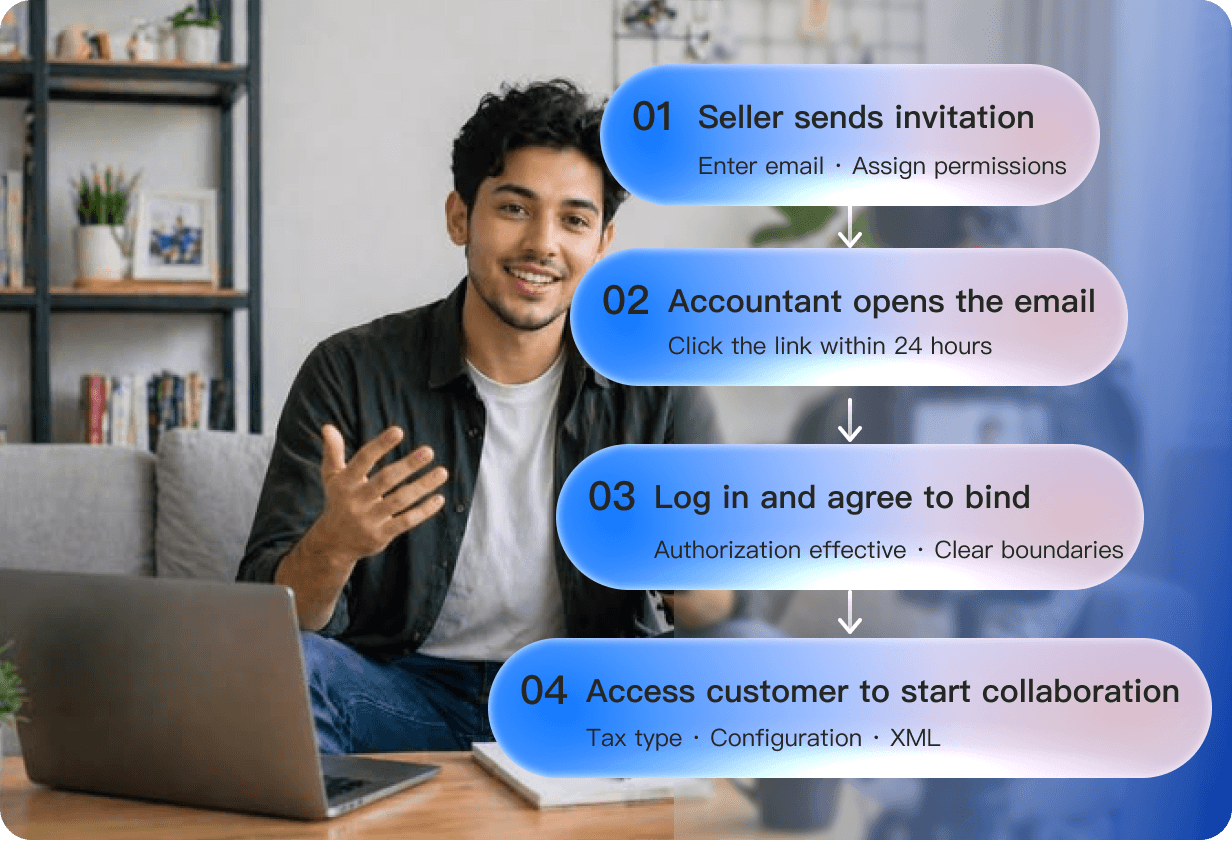
Invite and authorize in four steps
The seller sends an invitation, the accountant registers and binds the account, permissions take effect, and collaboration begins.
- Step 1: The seller enters an email, assigns permissions, and sends an invitation in “Accountant Settings”
- Step 2: The accountant opens the link in the email to go to the CPA system
- Step 3: The accountant signs in and clicks “Accept Binding” to activate authorization
- Step 4: The accountant opens “Access Clients” and handles invoice tasks directly
Invite an accountant and start a clear, simple collaboration process.
More than a change in how files are shared
Make accountant collaboration more efficient and keep invoice data flowing smoothly.
Every round of communication means another wait
Seller exports → sends email → accountant confirms → seller adjusts → sends again......
Collaborate directly after authorization
Seller authorizes → accountant works directly → changes take effect immediately → data syncs in real time

Collaborate with assigned permissions
Sellers assign the accountant’s permissions individually, setting clear boundaries and protecting data.

Reduce repeated file transfers
Accountants directly manage tax regimes, edit settings, and download invoices, reducing manual exports and transfers.

Keep records consistent
Invoice data flows continuously from seller to accountant, making tax reporting records easier to process.

Invite and start
The seller sends an invitation and the accountant registers and binds the account to start collaborating directly through a simple process.
Frequently Asked Questions (FAQ)
About invitations, feature permissions, independent accounts, and collaboration scope.
In UpSeller, go to Settings → Permission Settings → Accountant Settings, click “Invite Accountant,” enter the accountant’s email and set feature permissions, then send the invitation. The link sent to the accountant is valid for 24 hours. The accountant must accept within that period. If it expires, click “Resend Invitation” for a new link.



 Mercado Libre
 Shopee
 Amazon
 SHEIN
 TikTok Shop
 TEMU
 Falabella
 AliExpress
 Magalu
 Kwai
 Americanas
 Walmart
 Shopify
 Nuvemshop
 WooCommerce